SSO Login
VelaUX has two ways to sign in: local login, with a username and password stored in VelaUX, and single sign-on (SSO) through Dex. Dex connects to many identity providers, such as GitHub, GitLab, LDAP, Google, OIDC and SAML.
A new installation uses local login. A platform administrator switches it to SSO in Admin Dashboard > Settings. This guide sets up SSO with a GitHub connector and an LDAP connector.
How SSO users map to VelaUX users
VelaUX matches an SSO login to a local user by email, and the login gets that user's roles, including admin. Use only connectors that verify email addresses, and set the admin's email to an address you control.
A login with an email that matches no local user creates a new user. That user starts with the default projects and roles you set in Settings (see Switch to SSO), and nothing else.
Enable the Dex addon
Enable the dex addon from the addon list:
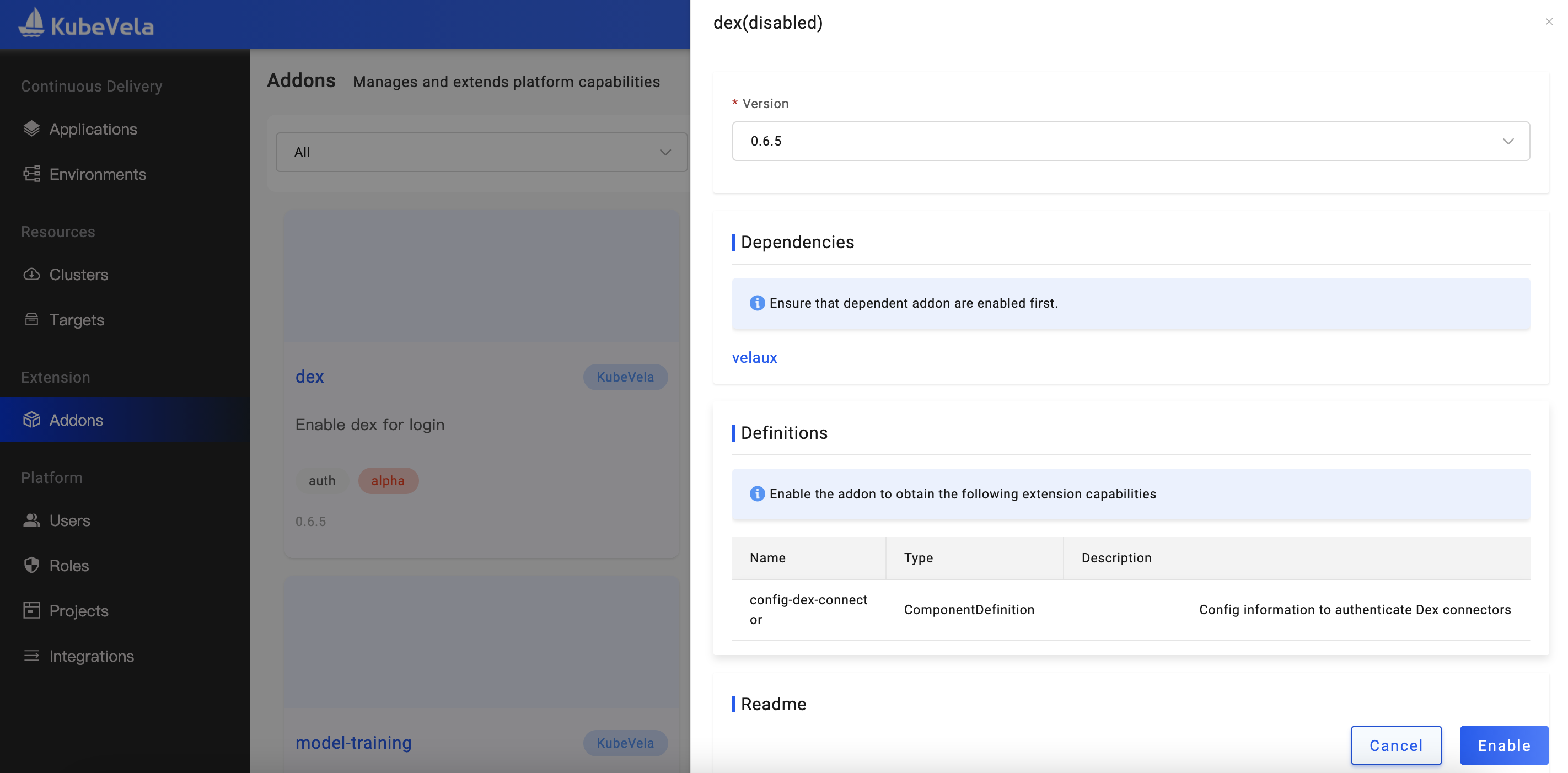
That is all VelaUX needs: it reads the Dex configuration from the dex-config Secret the addon uses, and writes your connectors into it.
Configure a Dex connector
You need at least one connector before you can switch to SSO. Connectors are configs of the Dex Connector template, under Admin Dashboard > Global Configs.
GitHub connector
-
In GitHub's Developer settings, create an OAuth App. Set its Authorization callback URL to
<VelaUX address>/dex/callback.VelaUX needs an address your users' browsers can reach, and that address is the callback URL you register with GitHub. GitHub sends the browser back to it after login, so it does not have to be reachable from the internet, only from your users' machines.
-
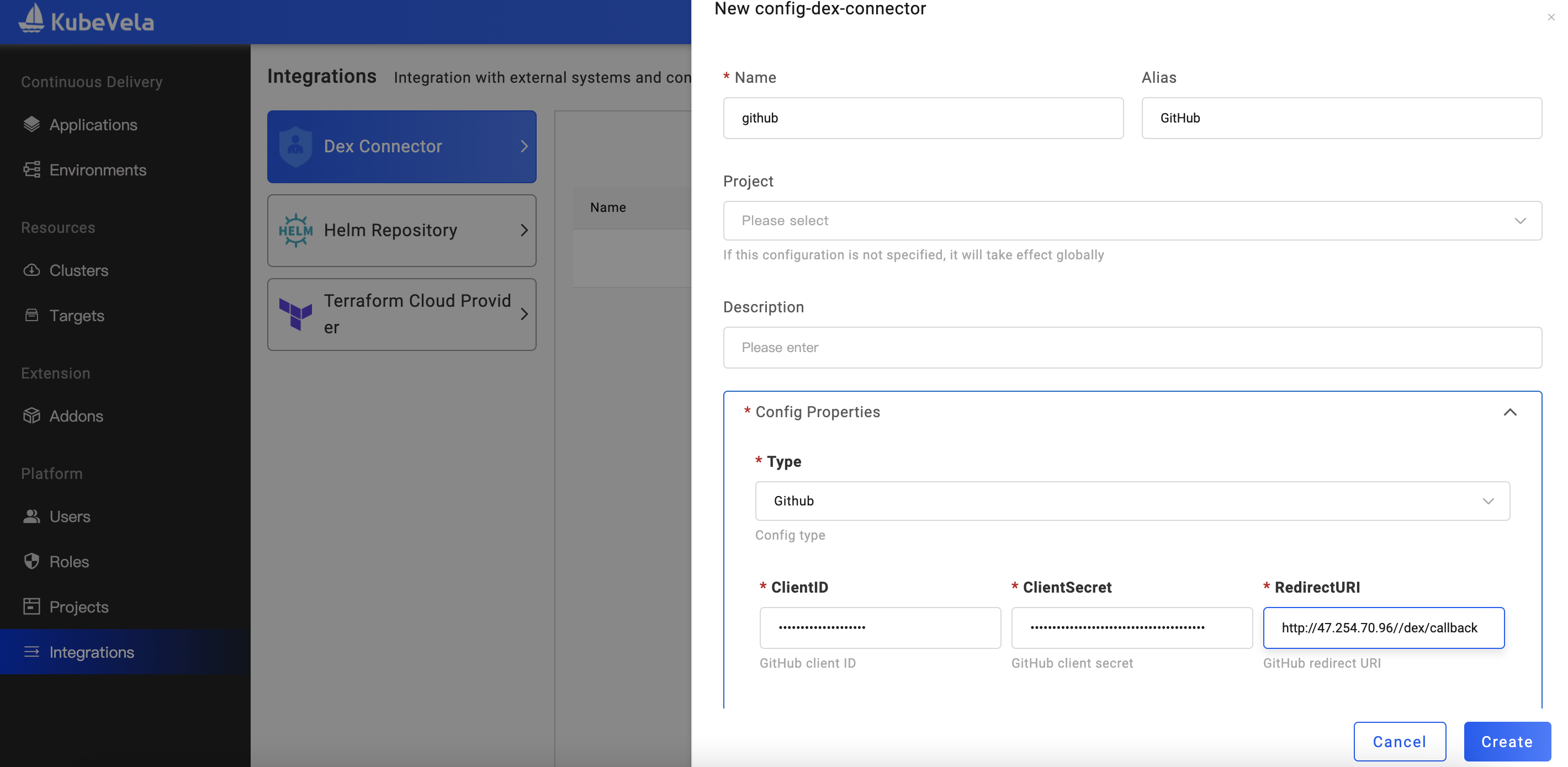
In Admin Dashboard > Global Configs, create a Dex Connector config of type
GitHub. Set the Client ID and Client Secret from the OAuth App, and set the Redirect URI to the same<VelaUX address>/dex/callback.
LDAP connector
Make sure your LDAP server is reachable from the cluster VelaUX runs in.
-
Create a Dex Connector config of type
LDAP. Set Host to the address of the LDAP server, and set BaseDN.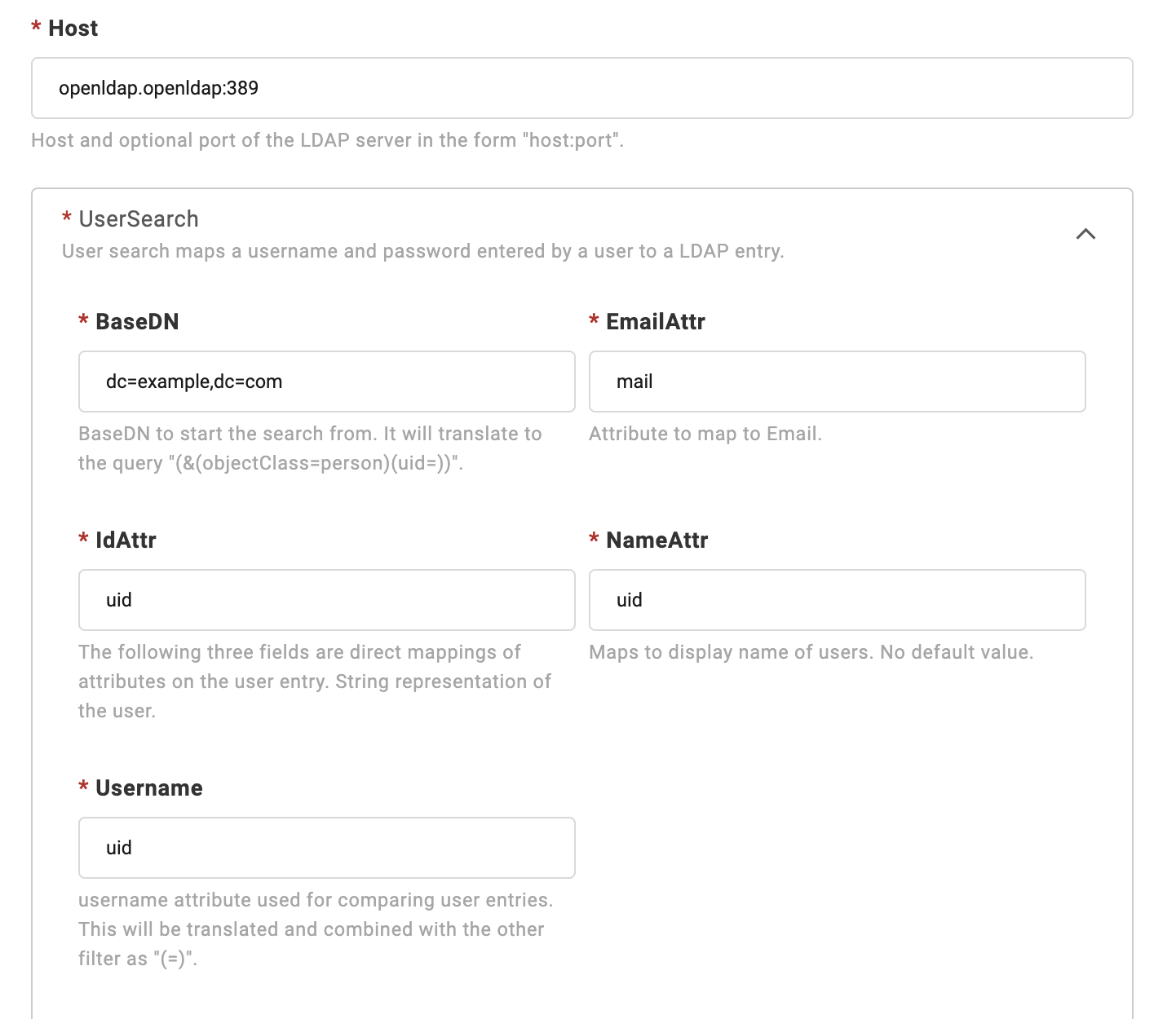
-
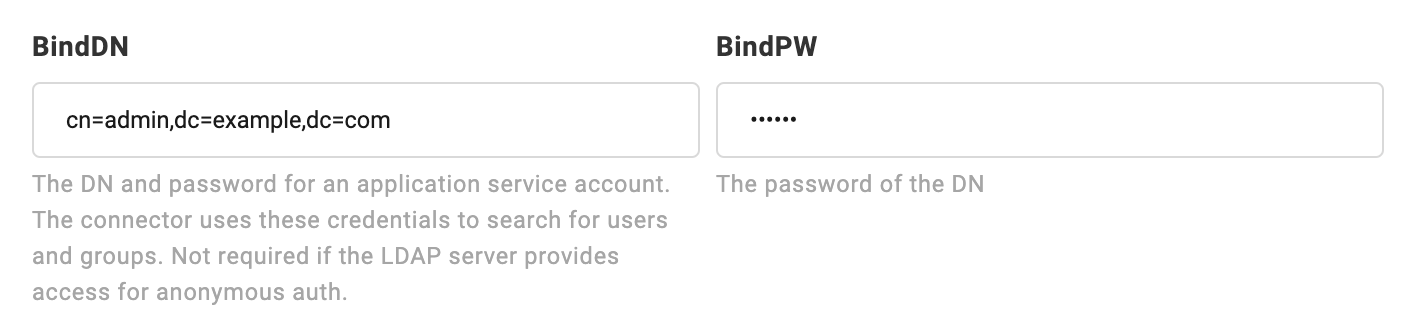
If your LDAP server does not allow anonymous search, open Advanced Parameters and set BindDN and BindPW. The connector searches for users with these credentials.
Other connectors
The Dex Connector form offers seven connector types. Create one under Global Configs with the Dex Connector template, and pick the type first: the form then shows that type's fields. For the provider-based types, register an OAuth app with the provider and set its callback to [VelaUX address]/dex/callback, the same value you give as the Redirect URI.
| Type | Fields |
|---|---|
| GitHub | Client ID, Client Secret, Redirect URI |
| GitLab | Client ID, Client Secret, Base URL (defaults to https://gitlab.com), Redirect URI |
| Client ID, Client Secret, Redirect URI | |
| OIDC | Issuer (the provider's canonical URL, used for discovery), Client ID, Client Secret, Redirect URI |
| SAML | SSO URL, CA (to validate the response's signature), Redirect URI, Username Attr and Email Attr (the assertion attributes mapped to the ID token's claims) |
| LDAP | Host (host:port), User Search (Base DN, plus the username, ID, email and name attributes and an optional filter), Bind DN and Bind PW (for servers without anonymous access), Insecure No SSL, Start TLS, Root CA, Username Prompt |
| OAuth | Client ID, Client Secret, Redirect URI, Token URL, Authorization URL, User Info URL; optionally Scopes, User ID Key, Insecure Skip Verify, Root CAs, and Claim Mapping for providers that return non-standard user fields |
Each connector is stored as a Secret in vela-system, and VelaUX passes every one of them to Dex. For what each field means to Dex, see the Dex connector docs.
Switch to SSO
- In Admin Dashboard > Users, set the email of each administrator to an address they own in the identity provider. Their SSO login then signs them in as that admin.
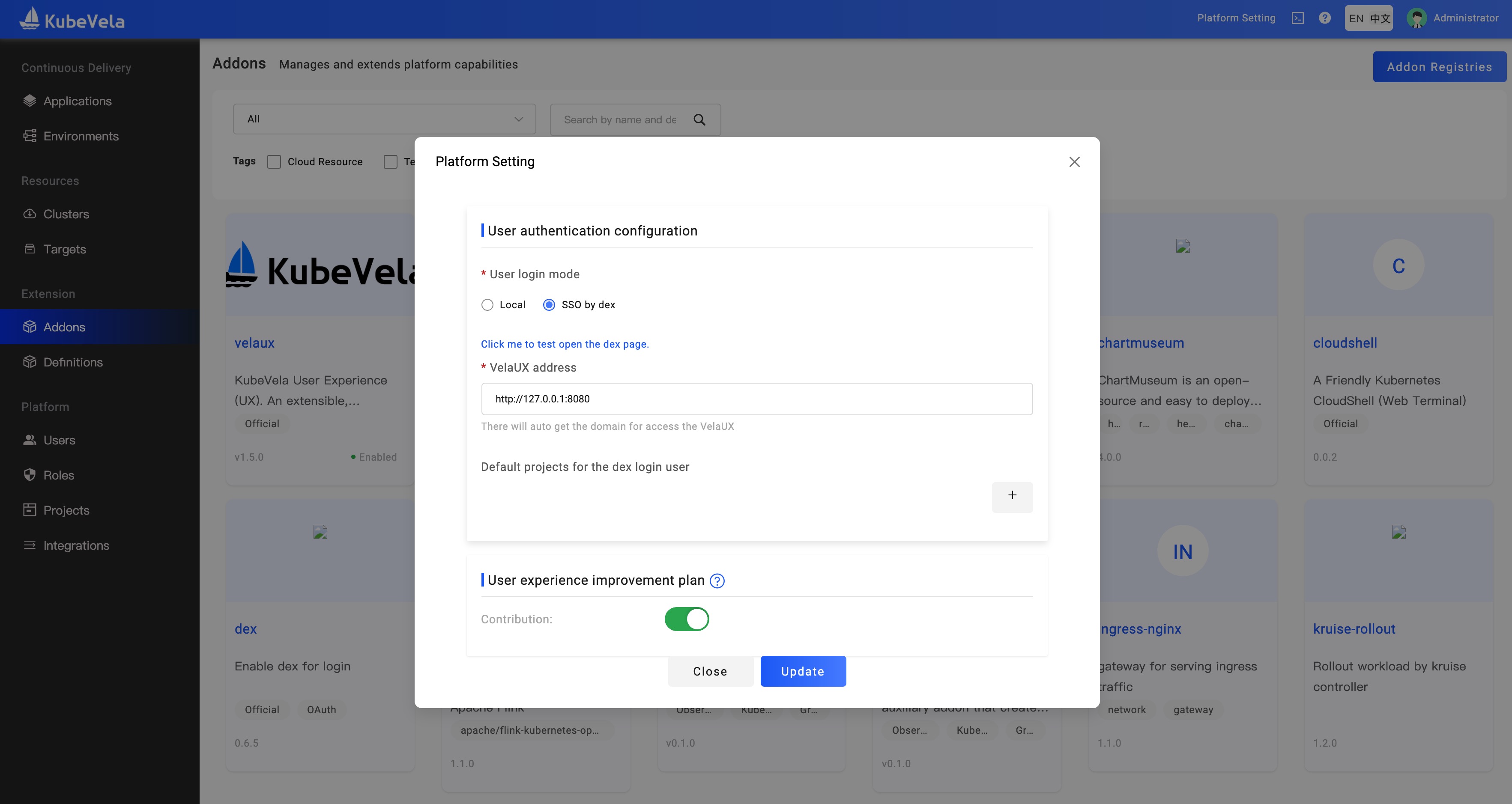
- In Admin Dashboard > Settings, set User login mode to SSO by dex and set VelaUX address to the address your users open VelaUX at.
- Click Click me to open the dex login page and check that the Dex page loads and lists your connectors. Fix the connectors before you go on if it does not.
- Optionally, set the default projects and project roles for users who sign in through SSO for the first time.
- Submit.
Locked out?
After the switch, an administrator can still sign in through Dex with their email and VelaUX password: VelaUX gives Dex every admin user as a password login. Sign in that way and set the login method back to local in Settings. Before switching, keep a session open in another tab; it stays valid for an hour, long enough to switch back.
Sign in with SSO
Sign out and reload the page. VelaUX sends you to the Dex login page:
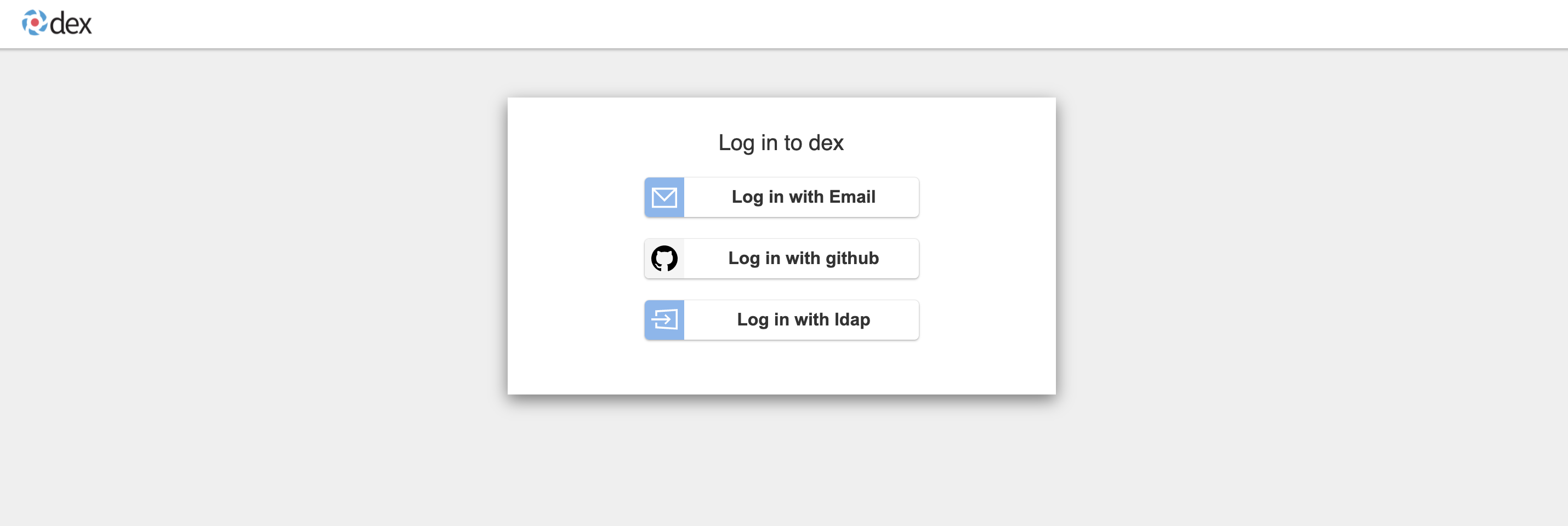
Choose GitHub or LDAP and sign in:
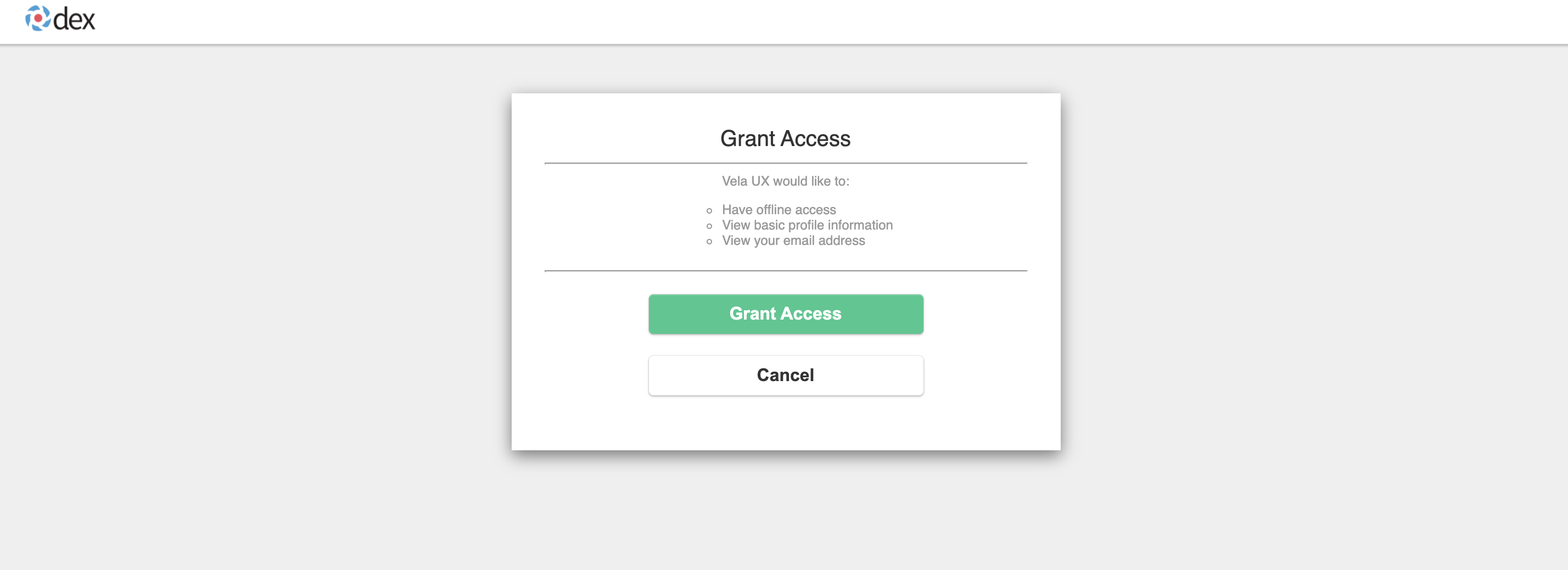
If your email matches a local user, you are signed in as that user, with its roles. Otherwise VelaUX creates a new user with the defaults from Settings.