Cloud Shell
Cloud Shell opens a terminal in the browser with vela and kubectl set up for your VelaUX user. You can use it to:
- Create applications in batches from YAML.
- Follow an application's logs.
- Open a shell in an application's container.
- Upload files to the shell environment and download them from it.
Enable the addon
This operation needs to have the permission of the addon management.
vela addon enable cloudshell
Open the cloud shell environment
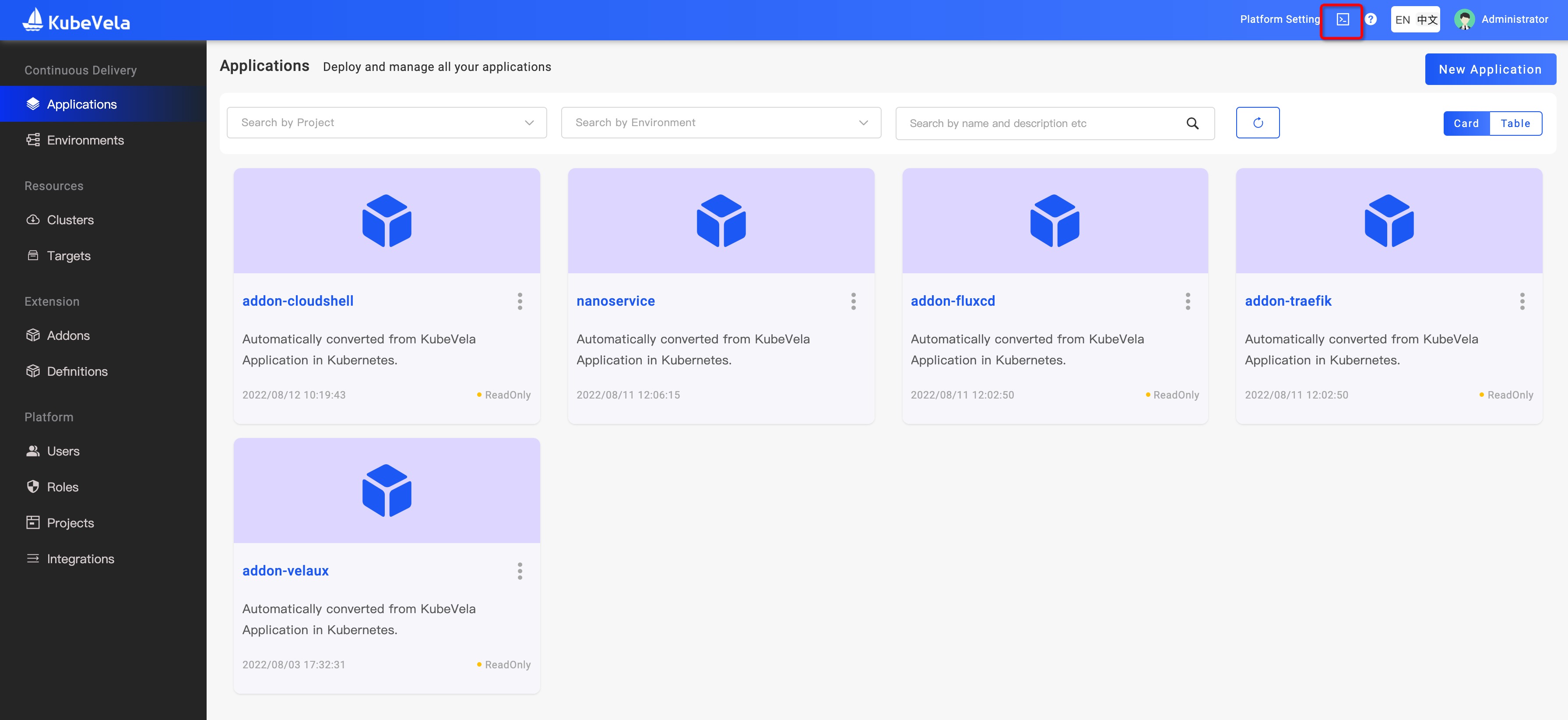
Click the cloud shell button at the top right of VelaUX to open it.
Every VelaUX user can open Cloud Shell unless a platform role with Disable CloudShell is bound to them. The shell's Kubernetes permissions follow the user's VelaUX roles:
| VelaUX permission (RBAC) | Kubernetes permissions in the shell |
|---|---|
admin | Anything. |
App Management in a project, or any permission that allows deploy on its applications | Full access to Applications in the project's namespaces. |
| Any other project role, such as Project View | Read access to Applications in the project's namespaces. |
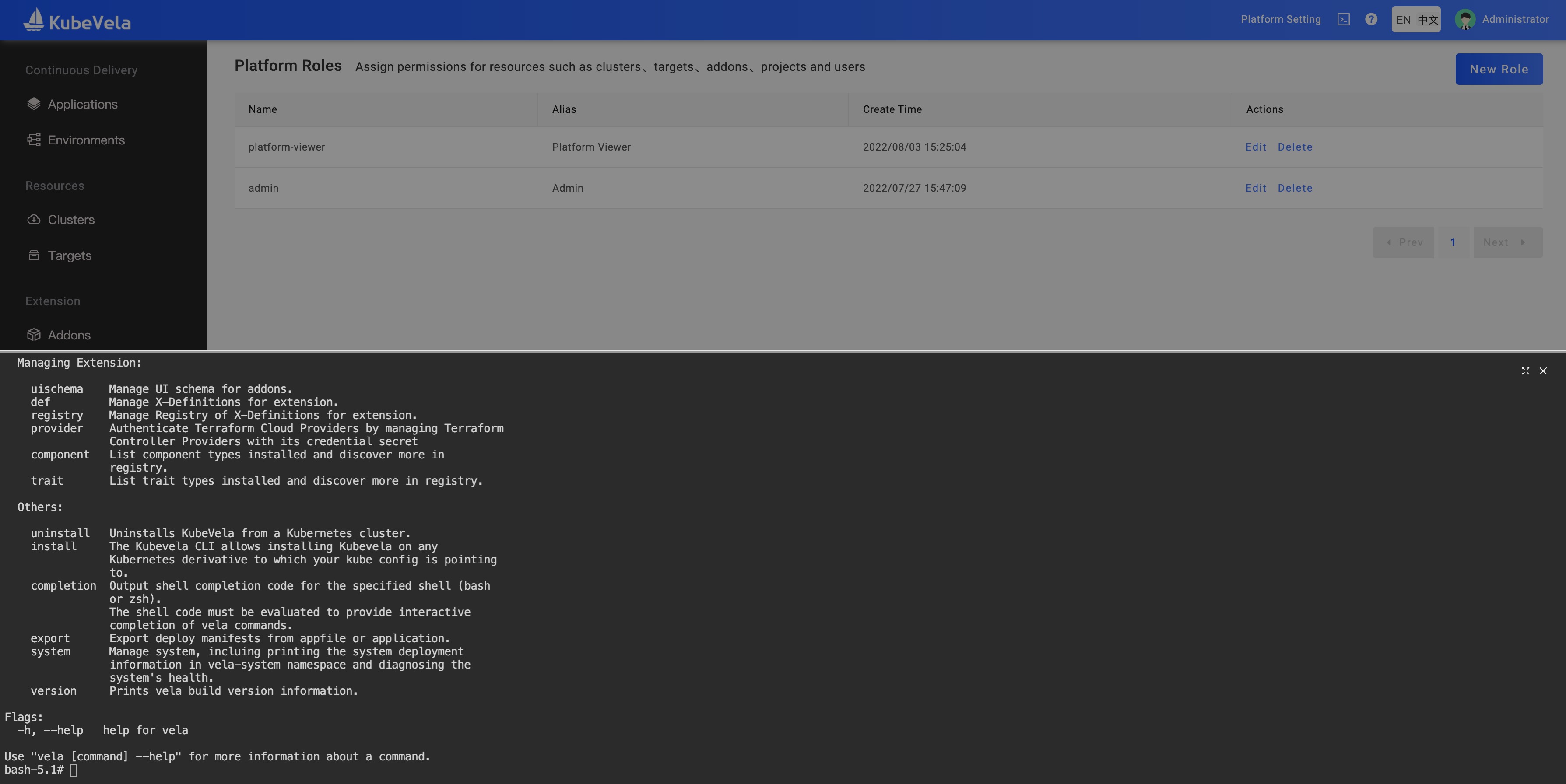
Run vela --help to see what the CLI can do.
The shell's vela CLI comes from the cloudshell addon's image (oamdev/cloudshell:v1.7.2), so it is version 1.7.2, whatever version of KubeVela you run. Commands added since are missing or behave as they did in 1.7, among them vela def test, vela mcp and vela config-template migrate, and vela config writes legacy Secrets rather than Config resources. Use a current vela on your own machine for those.
Open the console of the application containers
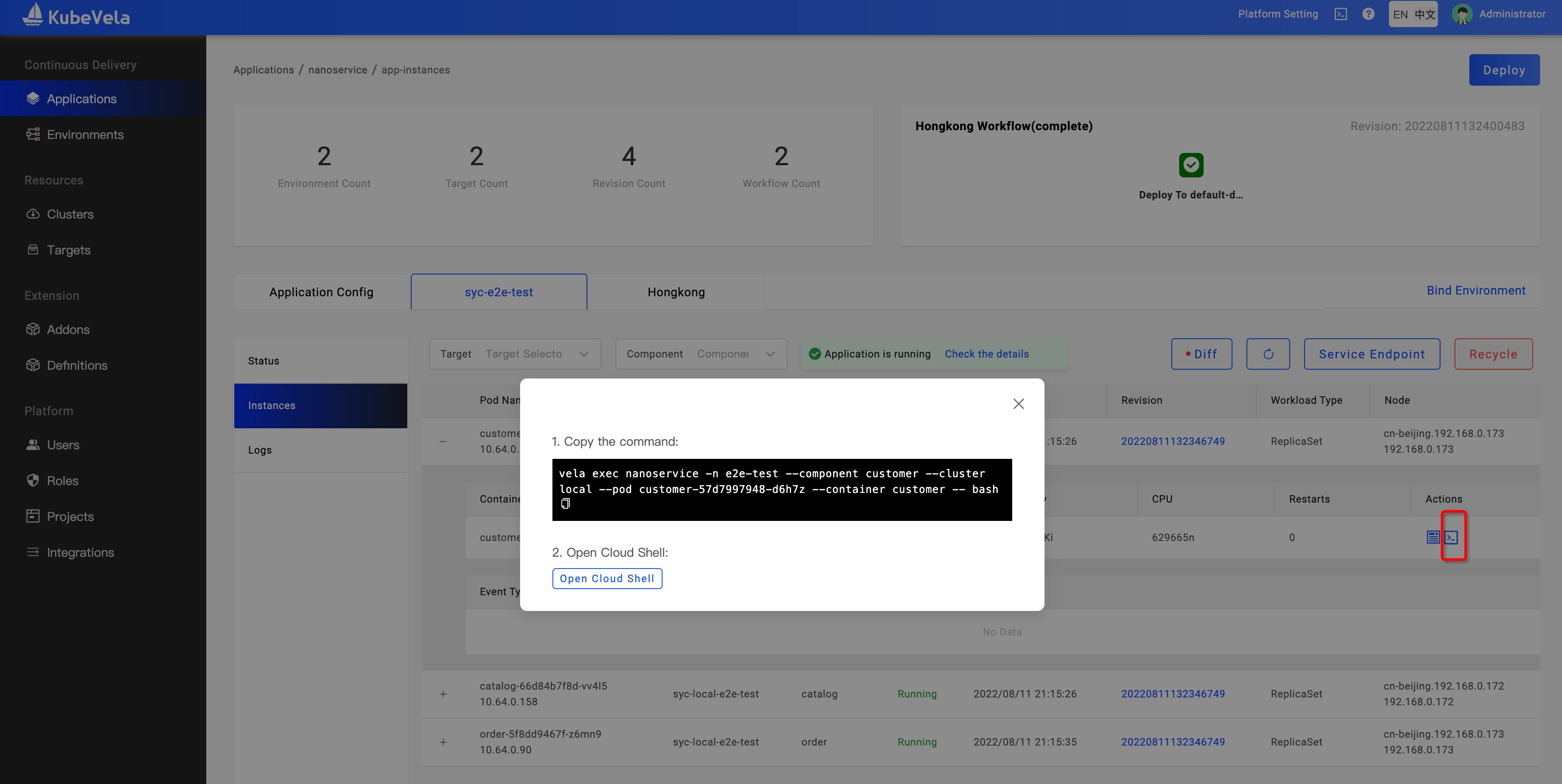
When you want to debug the application runtime, using the container console could be pretty helpful. In KubeVela, this feature is one of the common use cases of the cloud shell. After clicking the button, you will open a dialog window and see the command line. You can copy the commands and execute them in the cloud shell.